
You put a slideshow together on your Mac, where the big screen makes it easy to arrange photos and videos. Later you’re on the sofa with your iPad, or showing family photos to a visitor from your iPhone—and the slideshow should simply be there, exactly as you left it.
To achieve this, SlideFlow syncs your slideshows across all your Macs, iPhones, and iPads through iCloud: the photos and videos you picked, their order, every setting you changed, your music tracks, and your titles. There’s no export step, no file to send yourself, and no separate account to create—it uses the iCloud account you already have.
This guide explains what you need for it to work, what actually travels between your devices, and— the part that surprises people—why one slideshow can cost you gigabytes of iCloud storage while another costs almost nothing.
In short: sign in with the same Apple Account (Apple ID) everywhere and leave iCloud on for SlideFlow. Then it depends on where your media comes from:
- Photos library: also leave iCloud on for Photos and give SlideFlow full access to it on every device. Slideshows built from the library sync for almost no iCloud storage, because SlideFlow stores a reference to each photo rather than a copy.
- Files: they sync only if you have SlideFlow copy them into the slideshow—those copies do use real storage, in iCloud and on every device the slideshow reaches. Files you instead reference in place use no storage but don’t sync at all. Choosing between the sources is a guide of its own.
Music from the Music app is the one thing that stays on the device you added it on. And if a slideshow doesn’t turn up on your other device, start here.
What you need for sync to work
Two conditions always apply, and both are probably already true:
- Signed in with the same Apple Account (Apple ID) on every Mac, iPhone, and iPad you want the slideshows on. Sync happens within your own account—there’s no way to sync a slideshow to somebody else’s device.
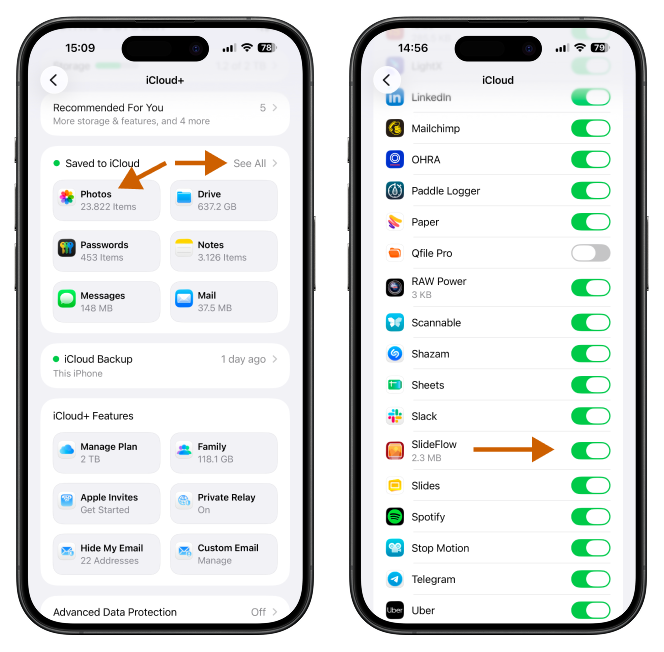
- iCloud sync is enabled for SlideFlow. This is the switch that lets the app store anything in iCloud at all. You’ll find it in the system settings, under your name → iCloud, in the list of all apps saved to iCloud (click / tap “See All”). It’s on by default; it’s worth checking if you once went through that list turning things off to save space.
When your slideshows use photos and videos from your Photos, two more join:
- iCloud sync is enabled for the Photos library. SlideFlow syncs the slideshow; iCloud Photos is what puts the actual photos on your other devices.
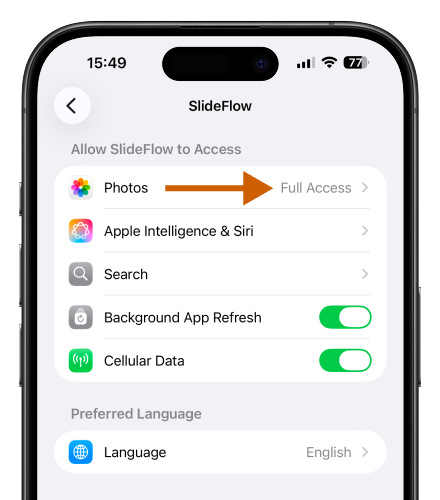
- SlideFlow has sufficient Photos access on all devices. Full access is the setting that just works—the next section explains why this one matters more than it looks.
Slideshows built from files need nothing beyond the first two: copied files travel with SlideFlow’s own iCloud sync, and referenced files don’t sync at all.
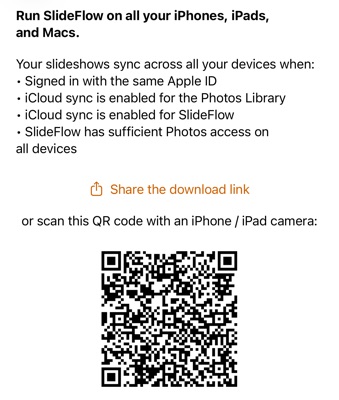
You’ll find the same list inside the app, under Settings → Run on iPhones / iPads / Macs, along with a QR code and a share link for installing SlideFlow on your other devices.
Once those are in place there is nothing to switch on per slideshow. Everything you create syncs.
A synced slideshow carries its media—references to the photos and videos in your Photos library, and any files you had copied into it—along with their order, the slideshow’s settings, its titles, and its music selections. Those parts don’t all behave the same way, and the difference between them is what the rest of this guide is about.
Photos and videos from your library sync for almost nothing
When you add photos and videos from your Photos library, SlideFlow does not copy them. It stores a reference to each item—essentially a pointer into your Photos library—together with the slideshow and its settings.
That has two pleasant consequences for sync:
- A slideshow itself takes up practically no additional iCloud storage. A few kilobytes of settings and references, whatever its length. A 300-photo slideshow of a summer holiday is not meaningfully bigger than a 10-photo one. The photos themselves are already in iCloud Photos, where they’d be with or without SlideFlow, and you’re not paying for a second copy of them.
- Sync is fast. There are no gigabytes to upload before your other devices see the slideshow. The slideshow can arrive quickly; the photos are already on the other device, or arrive through iCloud Photos on their own schedule.
This is also where the full-access recommendation comes from. The same photo is identified differently on every device, so on the receiving device—your iPad, say—SlideFlow has to search your library for the items the slideshow refers to. With full Photos access it can always find them. With limited access, where you hand the app a hand-picked set of photos, it can only find the items inside that device’s selection—and the selection doesn’t sync, so you would have to maintain it by hand on every device, covering every photo your slideshows use; anything outside it shows as missing. That’s why the app asks for full access, and why the answer to “my slideshow synced but the photos are missing” is usually this setting. Granting it widens what SlideFlow can find in your library, not what it does with it: your photos are read only to be shown in your slideshows, and referenced rather than copied.
The same logic applies to the photos themselves. If iCloud Photos is off and SlideFlow sync via iCloud is on, the slideshow still arrives on your iPad, but it’s pointing at photos that only exist on your Mac. The references are fine, but the library they point into isn’t there.
If that’s deliberate—an iCloud Photos you’d rather not switch on, or a library you barely use—then adding your media as files, copied in, is how to get those slideshows syncing anyway. The copies travel inside the slideshow, so they don’t depend on your library at all, at the price the next section describes.
Files you import are copied—and they do use storage
The other way to add media is from Files or Finder: photos and videos that aren’t in your Photos library. These behave differently, and it’s worth knowing which of the two you’re using.
Since version 4.0, what happens to an added file is your choice. The first file you add to a saved slideshow brings up the question—Copy, or Keep at Original Location—and you can change your answer anytime with Copy Media Files into SlideFlow in the app’s General Settings (it applies to files you add from then on, not to media already in your slideshows). For sync, the two choices couldn’t be more different.
Copied files sync, and use storage. When SlideFlow copies a file in, the copy belongs to the slideshow—inside the app and in iCloud. It syncs to your other devices as part of the slideshow, and it works on all of them without depending on your Photos library at all. The cost is storage, and you pay it twice over: the copy counts against your iCloud storage quota like anything else you keep in iCloud, and it also takes up space on each device the slideshow syncs to, since the file has to be there for the slideshow to play. A handful of photos is nothing to worry about. Video is a different matter—a single file runs to hundreds of megabytes or several gigabytes, depending on its length, resolution, and format, and a slideshow built from imported video can be the largest thing SlideFlow ever puts in your iCloud account—or on your iPhone. It is also slow to sync, since the whole thing has to travel between your devices. SlideFlow trims what it can while copying: oversized photos are downscaled to what output can actually use, and storage-hungry formats—TIFF, RAW, BMP—are re-encoded as HEIC, saving storage and sync traffic with no visible quality loss.
Referenced files don’t sync. If you chose to keep files at their original location, they use no iCloud storage—and they don’t sync either. The slideshow itself still arrives on your other devices, with its order, settings, and titles, but the referenced items show there as unavailable until that device can reach the same files. With an external drive this turns into a feature: several devices can work with the same drive—Macs, iPhones, and iPads alike. Plug it into the other device, press Locate… once, and the same slideshows play there too—a whole media collection shared between your devices, with iCloud carrying only the lightweight slideshows and none of the media.
So, for sync purposes, the rule of thumb is simple:
- Media from your Photos library: referenced, essentially free, needs iCloud Photos and Photos access on every device.
- Media copied from files: uses real storage both in iCloud and on every device, slower to sync, works everywhere with no dependency on Photos.
- Media referenced from files: free, but stays put—it plays only where the files themselves are reachable.
Neither is better—they’re for different situations, and there is more to the choice than sync alone. Our guide on the Photos library versus files compares the sources in full: how to add from each, what each one lets SlideFlow do for you, and which to pick when.
The copy treatment always applies to images you add as overlays, such as a logo or a title card: they’re copied into the slideshow and travel with it. Audio files you add as music are handled differently since version 4.0—the next section covers where they live now.
Music: three sources, three different behaviors
Music is where the two models above meet a third case, so it’s worth taking the sources one at a time.
Built-in tracks sync perfectly, and cost nothing. SlideFlow’s thirty-eight built-in tracks ship inside the app, so every device already has them. The slideshow only needs to record which ones it uses. Nothing is uploaded, nothing is downloaded, and the soundtrack is identical everywhere.
Audio files you add live in your My Music library, and sync through iCloud. Add an MP3 or another audio file and, since version 4.0, SlideFlow stores it once in My Music—a small music library of your own, shared by all your slideshows—rather than copying it into each slideshow. The slideshows just refer to it. The outcome for sync is what you’d hope: the track reaches your other devices via iCloud and plays everywhere, but each track is stored and synced only once, no matter how many slideshows use it, and adding the same file twice yields a single library entry. You can see and manage the library on the My Music screen, reachable from the Add Music menu and from the app’s settings. Music files are small next to video, so storage is rarely a concern anyway. If you want one particular song on every device, this is the way to do it.
Music from the Music app doesn’t sync. On iPhone and iPad you can also pull a song straight from your Music library, and that track stays on the device you added it on. SlideFlow can only store a reference to the song in that device’s Music library; it cannot copy the song into the slideshow—and that reference means nothing on your Mac or your other iPad. Note also that importing from the Music library is an iPhone and iPad feature to begin with: there is no equivalent on Mac.
SlideFlow doesn’t leave you guessing about this. On a device where such a track isn’t available, it appears in the slideshow’s Music Tracks list greyed out, with a red warning triangle and the line “Not available on this Mac” (or iPhone, or iPad).
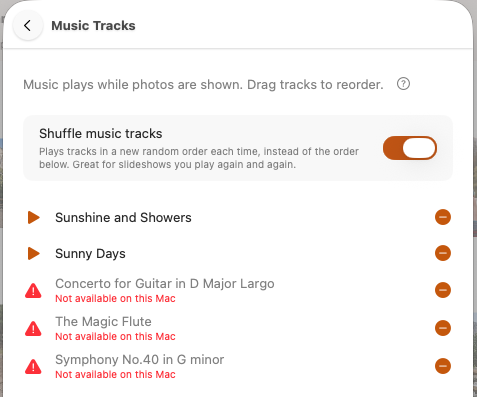
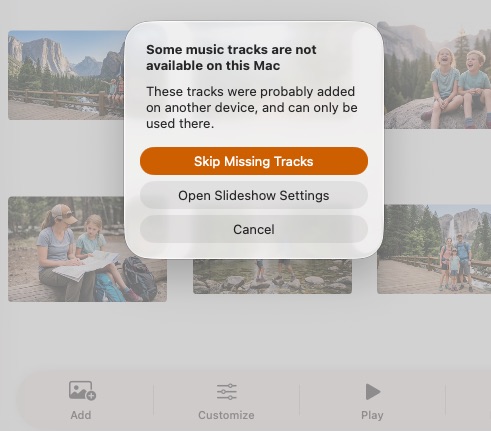
And if you play this slideshow, an alert offers to Skip Missing Tracks, open the slideshow settings so you can replace them, or cancel—so a slideshow made on your iPhone still plays on your Mac, just without those particular songs.
If you want the same music everywhere, add it as an audio file instead of pulling it from the Music app. And bear in mind the Music library has its own restriction even on the device it works on: you can only use songs that are available for use from the Music library; tracks that exist only as Apple Music streams aren’t available.
When something doesn’t arrive
Sync is quiet when it works, which makes it puzzling when it doesn’t. A few things to check, in the order that resolves most cases:
- The slideshow itself hasn’t appeared. Go back through What you need for sync to work and check the conditions on both devices. Every one that applies has to be met, and it only takes one of them being off to stop a slideshow from arriving. If they’re all in place, give it a moment with the app open and the device on a decent connection—iCloud syncs on its own schedule, and it isn’t instantaneous.
- The slideshow is taking a very long time to arrive. Check whether it was built from copied files rather than photos from your library. Those files travel with the slideshow, so the whole thing has to upload from one device and download on the other. A slideshow built from imported video can take many minutes, or longer on a slow connection.
- The slideshow arrived, but photos are missing. This is the Photos side, not the SlideFlow side. Confirm that iCloud Photos is on for the library on both devices, and that SlideFlow has full Photos access on the device where photos are missing—limited access is the usual culprit. If both are already in order, open the Photos app on that device and give it time to catch up. SlideFlow can only show what Photos has actually downloaded, and a device you haven’t synced in a long while can take a good while to pull the library down—leave Photos open, on Wi-Fi and on power, and check back later.
- The slideshow arrived, but some file-based items show as unavailable. Those are files you chose to reference in place rather than copy in—they stay where they are and never travel with the slideshow. They play only on a device that can reach the same files: plug in the same external drive and use the Locate… button on an unavailable item to point SlideFlow at it. If you’d rather have file media follow your slideshows everywhere, switch on Copy Media Files into SlideFlow in the app’s General Settings—it applies to files you add from then on.
- A photo is missing everywhere. SlideFlow points into your library; if the photo was deleted from Photos, there’s nothing left to point at. The item stays in the slideshow and is shown as missing media on every device; playback simply skips over it, so the slideshow still plays, just shorter. Deleting a photo from your library therefore affects every slideshow that used it.
- Some music tracks don’t play on this device. Those are Music library tracks, added on another iPhone or iPad. Replace them with built-in tracks or an audio file, or let the app skip them.
- Your default settings didn’t follow. They aren’t meant to. The Default Slideshow Settings belong to the app on the device you set them on, not to any slideshow, so they stay there. Each slideshow carries its own settings, and those do travel.
It’s also worth remembering what sync is and isn’t. It keeps your devices showing the same thing, which means a slideshow you delete on one device goes away on the others too. It is not a backup of your photos—that’s what iCloud Photos and your own backups are for. And if you want a copy of a slideshow that’s independent of all of this, one you can keep, send to someone without SlideFlow, or upload, export it as a video.
In practice
For most people the whole subject comes down to one habit: build your slideshows from your Photos library, and SlideFlow adds almost no additional iCloud storage usage. Add photos on your Mac where the screen is big, adjust the settings on the sofa from your iPad, and play the result on your TV from whichever device is in your hand—it’s the same slideshow throughout.
Import files when the media isn’t in your library, when your library doesn’t sync between your devices, or when you want a song on every device—and just keep half an eye on your iCloud storage if that means several large copied videos. And when a collection is too big to copy anywhere—on an external drive, say—reference the files in place instead, and accept that those slideshows play where the files are, not on every device. If you want the longer version of that decision—what each source lets the app do for you, and what each one costs—see Photos library vs. files.
(Note: New to SlideFlow? The step-by-step tutorials for Mac or iPhone and iPad walk you through your first slideshow in a few minutes. More questions are answered in the SlideFlow FAQ).