
Every slideshow starts the same way: you add photos and videos to it. SlideFlow gives you two ways to do that—from your Apple Photos library, or from files on your Mac, in the Files app, on an external drive, or in iCloud Drive.
Most of the time the choice makes itself. The picture is wherever it happens to be, you add it from there, and the slideshow plays. But the two sources behave differently once the slideshow exists. Played or exported, the slideshow looks the same either way; what differs is what it costs you, and what happens to it later: a slideshow that takes gigabytes of iCloud storage while another takes almost none, a photo you edited in Photos that updated itself inside a slideshow you made months ago, or a folder of holiday videos that plays perfectly even after you unplugged the drive they came from.
In short: use your Photos library whenever the media is already there. It costs almost no storage, it unlocks everything SlideFlow can do automatically—Moments, date ranges, albums, filtering—and edits you make in Photos flow straight into your slideshows. Use files for anything that isn’t in your library—and choose whether SlideFlow copies them into the slideshow, which costs real storage but syncs the media to your other devices and keeps the slideshow playing even if the originals disappear, or plays them from their original location, which costs no extra storage but needs the files to stay reachable. And you can even mix both in one slideshow without thinking about it. If your photos don’t live in Photos in the first place—Lightroom, Capture One, folders on a drive—then files are simply your route, and most of the trade-off below doesn’t apply to you.
| Photos Library | Files | |
|---|---|---|
| Stored in the slideshow as | A reference | A copy or a reference—your choice |
| Extra storage used | Almost none | Full size if copied; almost none if referenced |
| Sync to your other devices | Usually fast | Copies sync slower; referenced files don't sync |
| Automatic creation & Moments | From a date range, split by date and place; from albums; with smart filtering | Split by date, or one slideshow per folder |
| Edits made later in Photos | Followed automatically | Not followed |
| If the original is deleted | The item goes missing | Copies unaffected; referenced items go missing |
| Requires Photos library access | Yes | No |
| Media self-contained in slideshow | No | Yes, if copied |
| Can mix both in one slideshow | Yes | Yes |
Two ways to add photos and videos
Both live behind the same Add button at the bottom of a slideshow.
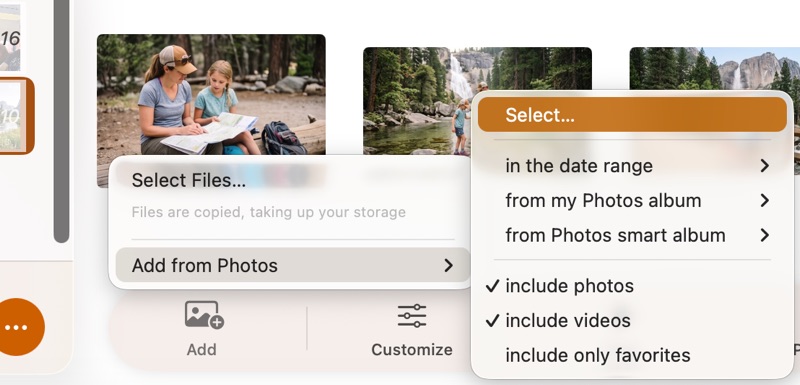
Select Files or Folders… opens the standard file picker—Finder on Mac, the Files app on iPhone and iPad—so you can reach anything the system can: your Pictures folder, an external drive or SD card reader, iCloud Drive, Dropbox, a shared network volume. Any image or video file your device can read is accepted, and so are whole folders—pick one and everything inside it is added. The app tells you the important part right there in the menu, under the command: Files are copied, taking up your storage, or Files play from their original location, depending on which of the two you’ve chosen.
Add from Photos works with your Apple Photos library. Select… inside it opens the system photo picker for choosing items by hand, and the rest of the submenu is the automatic route—by date range, from one of your albums, or from a Photos smart album, with switches for including photos, including videos, and including only your favorites.
There’s also a convenient third way in: drag the files straight onto the slideshow. Drop a selection—files or folders—from Finder onto the media grid and they’re added exactly as if you’d picked them with Select Files or Folders…. This works on iPhone and iPad too—drag out of the Files app, for example.
When files are being copied in, adding takes a moment, so SlideFlow shows a progress sheet while it works, with a Cancel button. Cancelling stops the rest; anything already imported stays in the slideshow.
The one difference everything else follows from
Photos library media is referenced by SlideFlow; file-based media is copied into the slideshow—or, since version 4.0, referenced in place instead, if that’s what you choose.
When you add an item from your Photos library, SlideFlow stores a reference to it—a pointer into your library. The photo stays where it is, owned by Photos, and the slideshow just knows how to find it.
When you add a file, what happens is up to you. In copy mode, SlideFlow copies it into the slideshow: from that moment the copy belongs to the slideshow, and SlideFlow no longer uses the original file. In reference mode, the file stays exactly where it is and the slideshow plays it from there—much like a library reference, except the pointer goes to a file instead of a photo in Photos. How to choose between the two is covered below.
Everything below—storage, sync, editing, deleting, permissions—follows from that one distinction.
Using your Photos library
Almost no storage, and quick sync
A reference takes very little storage compared with a full-resolution media file. A copy is a few megabytes, or even gigabytes for large videos.
That means a slideshow built from your library uses very little storage—a 300-photo slideshow of a summer holiday is not significantly bigger than a 10-photo one. The slideshow itself can sync quickly because SlideFlow doesn’t have to upload another copy of the media. The photos are already stored in your Photos library, and if you use iCloud Photos, they’re already covered by the storage you’re paying for there—you aren’t paying for a second copy in SlideFlow.
Syncing slideshows across your devices covers this side in detail, including what you need to switch on and what to check when something doesn’t arrive.
Slideshows that build themselves
This is the difference most people underestimate, because it isn’t about the photos at all—it’s about not having to pick them.
With a sufficient (preferably full) library access, SlideFlow can assemble slideshows for you. Give it a date range and it creates one from the photos you took then. Point it at one of your albums or smart albums and it builds a slideshow from that. Ask for Moments and it goes through your library on its own, groups your photos into the events they naturally belong to by when and where they were taken, and names each group after its dates and place—a weekend away becomes one slideshow, a birthday dinner another. Three toggles refine any of these routes: include photos, include videos, and include only favorites.
Files used to be a purely manual selection; since version 4.0 they have automatic routes of their own—point SlideFlow at your folders and it builds slideshows or Moments from them: split by date, the same way the library routes work, or one slideshow per folder, with your folder structure playing the role albums play in Photos. What files still can’t offer is anything only your library knows: whether you starred a photo, or which smart album would have caught it. Smart albums, favorites, and the other library metadata remain library-only.
The same asymmetry shows up in small ways throughout the app. A library photo you marked as a favorite in Photos carries its star into the slideshow’s media grid; an imported file has no favorite status to show.
Edits you make in Photos show up in your slideshow
When SlideFlow loads a library photo, it asks Photos for the current version of it. So if you crop a photo, straighten it, or push the exposure in Photos—today or next year—the slideshow you made last summer plays the edited version, on every device, without you touching it.
A copied file is the opposite: it’s a snapshot of the file as it was the moment you added it. Edit the original afterwards and the slideshow keeps playing the old copy, because that copy is what the slideshow contains. (A file referenced in place sits in between: the slideshow reads the file itself, so it plays whatever the file currently is.)
Which of those you want depends on the situation, and both are defensible. Library references mean your slideshows always show your best current version of each photo. File copies mean a slideshow you finished stays finished, immune to anything you do to your files later.
Photos that aren’t on this device are fetched when they’re needed
If you use Optimize Storage, most of your library isn’t actually on your Mac or iPhone—only small previews are, with the full-resolution originals in iCloud. SlideFlow handles this: when it needs a photo or video at full quality and only a preview is present, it asks Photos to pull the original down from iCloud.
The practical consequence is that library slideshows want a network connection the first time they play on a device that hasn’t downloaded those particular photos yet—along with iCloud Photos switched on for that library, which is what puts the photos on the other device at all. Once Photos has them, they play from local storage like anything else.
It’s also where you may notice the difference. SlideFlow loads the first few items before playback begins, so a slideshow whose opening photos are still only in iCloud takes a little longer than usual to start. After that it keeps loading ahead of what’s on screen, which normally hides the delay—but over a slow connection the slideshow can catch up with the downloads while it plays. Export works the same way, except that every item has to be fetched, so exporting a slideshow whose photos aren’t downloaded yet is slower than exporting the same one again afterwards.
There’s a stronger version of the same problem. Fetching a photo on demand only works if this device’s library knows about it in the first place—and a photo you took on your iPhone an hour ago, or anything at all on a Mac you haven’t opened in months, may not have reached it yet. Then there is nothing for SlideFlow to fetch: the item shows as failed to load, even though the slideshow itself arrived intact.
The fix isn’t in SlideFlow. Open the Photos app on that device, leave it running on Wi-Fi and on power, and give it time to finish syncing—for a library that’s badly behind, that can take hours. SlideFlow can only show what Photos has actually got. Sync troubleshooting covers this alongside the other reasons a slideshow can turn up incomplete.
Why SlideFlow recommends full Photos access
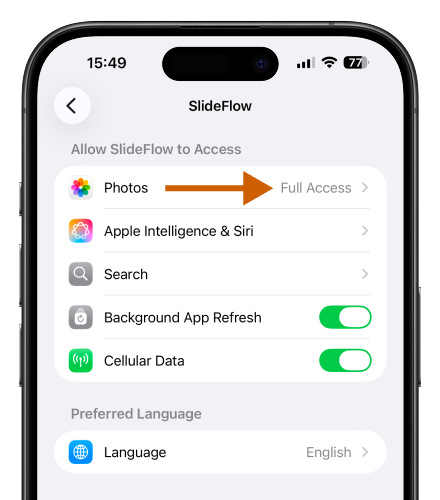
Limited access—where you hand the app a hand-picked set of photos instead of the whole library—isn’t refused: SlideFlow runs, and you can build and play slideshows from the photos you granted. But two capabilities fall away.
The first is the automatic half of the app. Moments, date ranges, albums, and smart albums all work by looking through your library, and under limited access there is almost nothing there to look through—so they come back empty, or with a handful of items.
The second is sync. The same photo is identified differently on every device, so to find the items a slideshow refers to, SlideFlow has to look them up in your library—and that lookup only runs with full access. Without it, a slideshow arriving from another device is intact, but its photos can’t be resolved on this one.
Full access is about what SlideFlow can find in your library, not about what happens to it afterwards. SlideFlow reads your photos only to show them in your slideshows, and stores references to them rather than uploading copies of its own.
What happens when you delete a photo from Photos
Deleting a photo from your library empties its slot in every slideshow that used it: there’s nothing left to point at. The item stays in the slideshow, marked as failed to load, and playback simply skips over it—the slideshow still plays, just shorter. That’s the flip side of never storing a second copy: the Photos library is the source for that media, so a slideshow can’t outlive the photos in it.
Using files from outside Photos
Media that isn’t in your library
The obvious one, and the reason the option exists. If your photos live in folders rather than in the Photos app—managed by Lightroom or Capture One, or simply organized on a drive—adding files isn’t a fallback; it’s simply how SlideFlow works for you. And the same door takes the incidental media too: a video someone sent you, footage straight off a camera card, a graphic made in another app, an old folder of scans you never imported—all of it goes into a slideshow directly, with no detour through Photos.
Copy it in, or play it from where it is
The first time you add a file to a saved slideshow, SlideFlow asks what you prefer—Copy, or Keep at Original Location:
- Copy brings the file into SlideFlow. The copy is independent of the original, syncs to your other devices via iCloud, and uses storage accordingly. Good whenever you want your slideshows available everywhere, with SlideFlow as your media’s home.
- Keep at Original Location leaves the file where it is; the slideshow plays it from there. No duplicate copies, no iCloud upload of the media—but the file has to stay reachable, e.g. the drive it’s on stays connected. Good for large collections on external drives.
The choice isn’t final: Copy Media Files into SlideFlow in the app’s General Settings switches between the two anytime. It applies to files you add from then on—media already in your slideshows stays as it was added.
Imported files are self-contained
That self-containedness is what copying buys you. Once a file is imported, the original is irrelevant. Delete it, rename it, move it to another folder, unplug the drive it lived on, empty your Downloads—the slideshow plays exactly the same, because it isn’t reading that file any more. It’s reading its own copy.
For a slideshow you assembled out of working files scattered across a drive, that’s a genuine relief. It’s also what makes imported media reliable across devices: the copy travels with the slideshow, so it plays on your iPad whether or not your iPad has ever seen the original.
That permanence is specific to slideshows. The Play on TV browser treats files differently again. Its Imports list, for casting files you haven’t put in a slideshow, is temporary—empty again the next time you launch the app. And on Mac it also has Folders, which it does remember between launches, but those are references to folders on that Mac rather than copies, so they never reach your other devices.
Referenced files stay where they are
Reference mode is the opposite trade. Nothing is duplicated—a slideshow built from a terabyte of footage on an external drive adds essentially nothing to your storage or your iCloud account, which is exactly what makes it the right mode for large collections that live outside your Photos library.
In return, the files must stay reachable. Unplug the drive, or move or rename a file, and the item shows in the media grid as unavailable, with an orange badge and a Locate… button. Plugging the drive back in is usually all it takes—on Mac, thumbnails heal on their own once the volume is back. If a file genuinely moved, Locate… lets you point SlideFlow at it again: pick the folder that contains it, and every missing file found in that folder is re-linked in one pass, so even a big relocation is one pick, not one per photo. Playing and exporting the slideshow need its referenced files to be reachable.
Sync changes accordingly. The slideshow itself still syncs—order, settings, titles—but referenced files don’t travel with it. On another device those items show as unavailable until that device can reach the same files—and that is where reference mode pays off twice: several devices can work with the same external drive—Macs, iPhones, and iPads alike. Plug it into the other device, press Locate… once, and the whole collection plays there too. A terabyte of footage, available on every device the drive visits, with iCloud carrying only the lightweight slideshows themselves. Syncing slideshows across your devices covers this side in detail.
One note on iPhones and iPads: external drives are not as dependable there as on a Mac. Whether a particular drive works depends on the device and the drive—power draw and format are the usual culprits—and even a drive that shows up in Apple’s Files app can stutter or disconnect partway through a long slideshow on some (weaker) iOS devices. If yours does, a drive with its own power supply may help, as well as copying the files into SlideFlow.
Moments built from files always reference them in place, whichever mode you chose—they’re temporary, so copying would be wasted storage. When you save a Moment as a slideshow, your copy-or-reference choice is applied to its file-based media at that point.
Slideshows straight from folders
Since version 4.0 the automatic routes aren’t reserved only for your Photos library. The Create menu can build slideshows From Folders: pick folders, and SlideFlow makes one slideshow per folder, or ignores the folder boundaries and groups everything by when it was taken—the same clustering that powers Moments. A folder that holds photos, videos, and a few music files comes out as a finished slideshow with that music.
Moments can be generated the same way: switch their source from Photos Library to Files, drop in files or folders—even hundreds—and SlideFlow turns them into Moments, referenced in place.
Can you use SlideFlow without Photos access?
Yes—you can skip Photos access entirely. SlideFlow offers Use Files Only when it first asks, and everything that doesn’t depend on the library keeps working: build slideshows from files, customize them, play them, cast them to your TV, export them as videos.
What you give up is the automatic half of the app that reads your library—date ranges, albums, favorites filtering, and Moments from your photos, though Moments and slideshows from folders still work. And if you copy your files in, you’ll use more storage on your device and in iCloud; referencing them in place avoids that.
Why imported files use more storage
This section is about copied files—referenced ones use no extra storage at all. You pay for a copy in two places: it counts against your iCloud storage quota like anything else kept in iCloud (if sync is enabled), and it takes up space on every device the slideshow reaches, because the file has to be present for the slideshow to play there.
You’re also, in most cases, storing the media twice on the same machine—once as your original file, once as the slideshow’s copy.
SlideFlow does soften the bill where it can, since version 4.0. While copying photos in, it downscales oversized ones to what output can actually use, and re-encodes storage-hungry formats—TIFF, RAW, BMP—as HEIC. That saves storage and iCloud sync traffic with no visible quality loss. Videos, and photos already in normal-sized JPEG, HEIC, or PNG, are copied verbatim.
A handful of photos is nothing to think about. Video is a different matter: a single file runs to hundreds of megabytes or several gigabytes, depending on its length, resolution, and format, and a slideshow built from imported video can easily be the largest thing SlideFlow ever puts in your iCloud account, or on your iPhone. It’s also slow to sync, since the whole thing has to upload from one device and download on the other—and on a device the slideshow has only just reached, SlideFlow may have to wait for that copy to finish arriving before it can play.
The storage isn’t stranded, though. Remove an item from a slideshow, or delete the slideshow, and SlideFlow deletes its copy and the space comes back. Your original file is untouched either way.
One more detail worth knowing: if iCloud isn’t available when you import a file, SlideFlow keeps the copy on that device only. The slideshow works normally there—but that particular file has no route to your other devices.
Which should you use?
The rule of thumb fits in one line: if it’s in your Photos library, add it from there. If it isn’t, import the file.
Reasons to deliberately choose the Photos library:
- The media is already in your library—which, for most people, is most of the time.
- You want SlideFlow to build slideshows for you from dates, albums, or favorites.
- You care about iCloud storage, or you’re on a small plan.
- You still edit these photos, and want your slideshows to follow.
- You want the slideshow on your other devices quickly.
Reasons to deliberately choose files:
- The media simply isn’t in your library, and you don’t want to put it there.
- You don’t use the Photos app at all—your photos live in Lightroom, Capture One, or in folders.
- Your collection is large and lives on an external drive—referencing the files in place gives you slideshows that cost no storage at all.
- Your Photos library doesn’t sync between your devices.
- You want the slideshow’s media to be self-contained and immune to changes in your library.
- You’d rather not grant an app full access to your photo library.
- It’s a small number of items, or a one-off project.
If your Photos library doesn’t sync between your devices but you want your slideshows to, importing is right even for media that could just as well be added from that library. SlideFlow’s own iCloud sync is separate from iCloud Photos, so you can have slideshows syncing perfectly well while your library stays local to one Mac. A slideshow built from that library then reaches your iPad as a set of references into a library the iPad has never seen, and nothing in it plays. Importing the files is the way out—copying them in, specifically: the copies travel with the slideshow, so it arrives complete wherever it lands.
The same logic partly applies beyond photos and videos. An image you add as an overlay—a logo, a title card—is always imported and copied into the slideshow. An audio file you add as music goes, since version 4.0, into your shared My Music library instead: stored and synced once via iCloud, however many slideshows use it. Music has one extra wrinkle: songs pulled from the Music app on iPhone and iPad can’t be copied at all, so they stay on the device you added them on. How music syncs covers both cases.
Mixing both in one slideshow
Nothing forces you to choose per slideshow. One slideshow can hold library photos, library videos, and files—copied or referenced—in any combination and any order, and once they’re in, SlideFlow treats them identically.
Transitions ease an imported clip in exactly as they do a library photo. Filters restyle both. Photo duration, face-aware animations, adaptive background, and every per-item override work the same on either. Playing on a TV, and exporting to a video file, don’t distinguish between them at all.
So the source only ever affects the things covered above—storage, sync, what SlideFlow can do for you automatically, and what happens to the slideshow when the original changes. Everything downstream of adding the media is identical.
A few practical tips
- If you use Photos, put it there first when it’s staying. For media you’ll want again—a video someone sent you, footage you’ll use in several slideshows—importing it into Photos and adding it from there avoids storing another copy in each slideshow and buys you everything the library route offers. Importing the file into three slideshows makes three copies.
- No need to downsize photos before importing them. When copying files in, SlideFlow downscales oversized photos automatically, preserving more than enough resolution for any playback or export. (To resize the files themselves, our iBatch on Mac and iSize on iPhone and iPad do a whole folder in one go.)
- Watch out for large imported videos. It’s the one case where a single slideshow can consume gigabytes. If the clip is in your Photos library, add it from there instead—or reference it in place rather than copying it.
- Referenced files have to stay reachable. Keep the drive connected while you play or export, and if something shows as unavailable, plug the drive back in or use Locate… to point SlideFlow at the files again.
- If you use your library at all, grant full access. Limited access is a common reason a synced slideshow arrives on another device with its photos missing.
- Deleting from your library affects your slideshows. Worth remembering before a clear-out: any slideshow that referenced the photo will show a gap.
- Removing media frees the space. If a slideshow has grown large, removing imported items—or deleting the slideshow—deletes their copies too.
- To make a slideshow permanent and portable, export it. An exported video is a single file that depends on nothing: not your library, not iCloud, not SlideFlow. That’s the version to send to someone or archive.
(Note: New to SlideFlow? The step-by-step tutorials for Mac or iPhone and iPad walk you through your first slideshow in a few minutes. More questions are answered in the SlideFlow FAQ).